
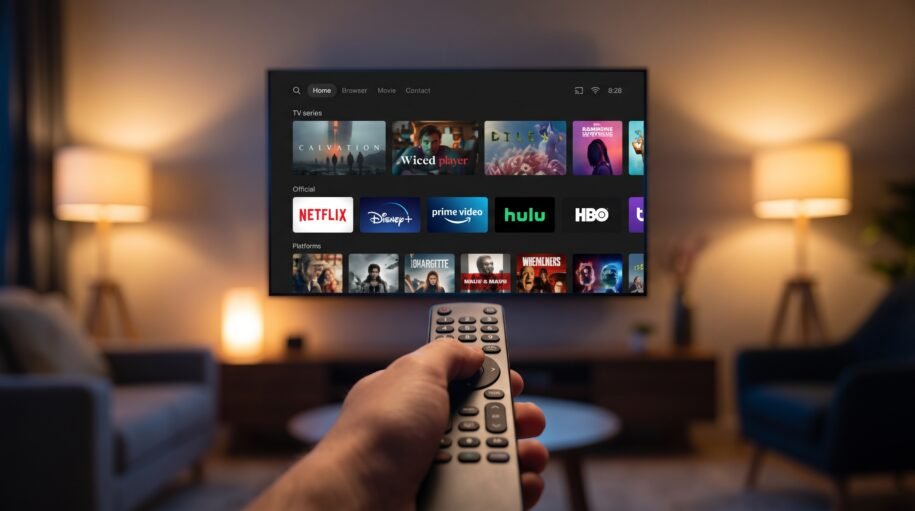
IPTV on LG Smart TV
If you own an LG Smart TV, getting IPTV up and running is just as simple as on any other smart TV — LG’s webOS system makes app installation quick, and once it’s set up you’ll have your live channels, movies and series ready to stream in a few minutes.
What You’ll Need Before You Start
- An LG Smart TV connected to Wi-Fi or Ethernet
- Your IPTV subscription details (playlist URL or login credentials, sent to you after you order)
- About 10 minutes for the full setup
If you haven’t subscribed yet, you can see our Smart TV IPTV plans here or message us on WhatsApp to get set up the same day.
Step-by-Step: Installing IPTV on Your LG Smart TV
Step 1: Open the LG Content Store
Press the Home button on your LG remote, then navigate to the LG Content Store — this is LG’s built-in app marketplace, available on every webOS Smart TV.
Step 2: Search for an IPTV Player App
Use the search function to look for a general-purpose IPTV player app compatible with webOS, such as Smart IPTV or a similar player. Like on Samsung TVs, this app itself doesn’t include channels — it’s simply the player that loads your subscription’s content.
Step 3: Install the App
Select the app and choose Install. LG’s webOS typically installs apps within a minute.
Step 4: Enter Your Subscription Details
Open the newly installed app and enter either your M3U playlist URL or your Xtream Codes login (server address, username, password), depending on which app you installed. Your provider sends these details directly to you — for Smart TV IPTV customers, we walk you through this exact step over WhatsApp right after you order.
Step 5: Sync Your Channel List
Once your details are entered, the app will load your full channel and content library. This usually takes under a minute, though larger channel packages may take a bit longer the first time.
Step 6: Start Watching
Browse your Live TV, Movies, Series, Sports and Kids categories, and start streaming in HD, Full HD, or 4K depending on your subscription tier.
Troubleshooting Common Issues
The app isn’t showing up in the LG Content Store. Availability can vary slightly by region and LG model year. If this happens, ask your provider which alternative player app works best for your specific TV — there’s usually a reliable substitute.
Channels won’t load after entering my details. Double-check for typos in your playlist URL or login info — these fields are case-sensitive. A fresh copy-paste of your credentials from your provider usually resolves this instantly.
Playback keeps freezing or buffering. This is almost always a network issue rather than a problem with the service. A wired Ethernet connection is more reliable than Wi-Fi if your TV is near your router, and restarting your router can help too.
Why Choose Smart TV IPTV
Our service is built around Smart TVs first, with full support for every other device too. Every plan includes:
- 20,000+ live channels
- A full movie and series library, updated regularly
- Live sports and anime included
- Setup help sent directly to you on WhatsApp, matched to your exact TV model
Whether you choose Premium Quality (up to 4K) or Medium Quality (HD/Full HD), the LG setup process above works the same way for both tiers.
Frequently Asked Questions
Does my LG TV need to be a certain age or model to support IPTV? Most LG Smart TVs from the last several years running webOS support this setup. If you’re unsure about your specific model, message us and we’ll confirm.
Can I switch from a different device to my LG TV later? Yes — your subscription isn’t tied to one device. Message us on WhatsApp if you need help moving your setup over.
What if the app I install looks different from the screenshots I’ve seen online? App interfaces get updated periodically. The core steps (enter your playlist or login details, let it sync) stay the same even if the exact menu layout looks slightly different.
How do I get help if I’m stuck? Reach out on WhatsApp any time — we’ll walk you through it live, step-by-step, for your exact TV.
Ready to get started? Order on WhatsApp and we’ll send your setup details right away.
Leave a Reply